
Download Compress – Free Mac Compression Utility, Secure File Zipping Tool
Overview
Compress is a lightweight, free utility for macOS that focuses on delivering fast and reliable file compression. First introduced in 2005, the program has built a modest but dedicated user base, accumulating over 13,000 downloads to date. Even though its most recent update (version 2.1) was released on 11 March 2006, the application remains fully functional on modern Mac OS X systems, offering a straightforward way to zip and unzip files without the bloat of larger, commercial solutions.
Designed exclusively for English‑speaking users, Compress sits comfortably in the Utilities → Compression sub‑category, positioning itself as a no‑frills alternative to more complex archiving tools like WinZip or The Unarchiver. Its primary appeal lies in its tiny footprint, minimal system requirements, and the fact that it performs core compression tasks without forcing users through intrusive ads or trial limitations. Whether you need to compress a handful of documents for email, archive a project folder before uploading to the cloud, or simply explore an alternative to the built‑in Archive Utility, Compress provides a clean, responsive interface that gets the job done.
The program’s age does not detract from its relevance; the core compression algorithms it employs are still compatible with contemporary zip standards, ensuring that archives created with Compress can be opened on Windows, Linux, and mobile platforms without issue. In short, Compress offers a free, secure, and straightforward solution for everyday compression needs on macOS.
Key Features
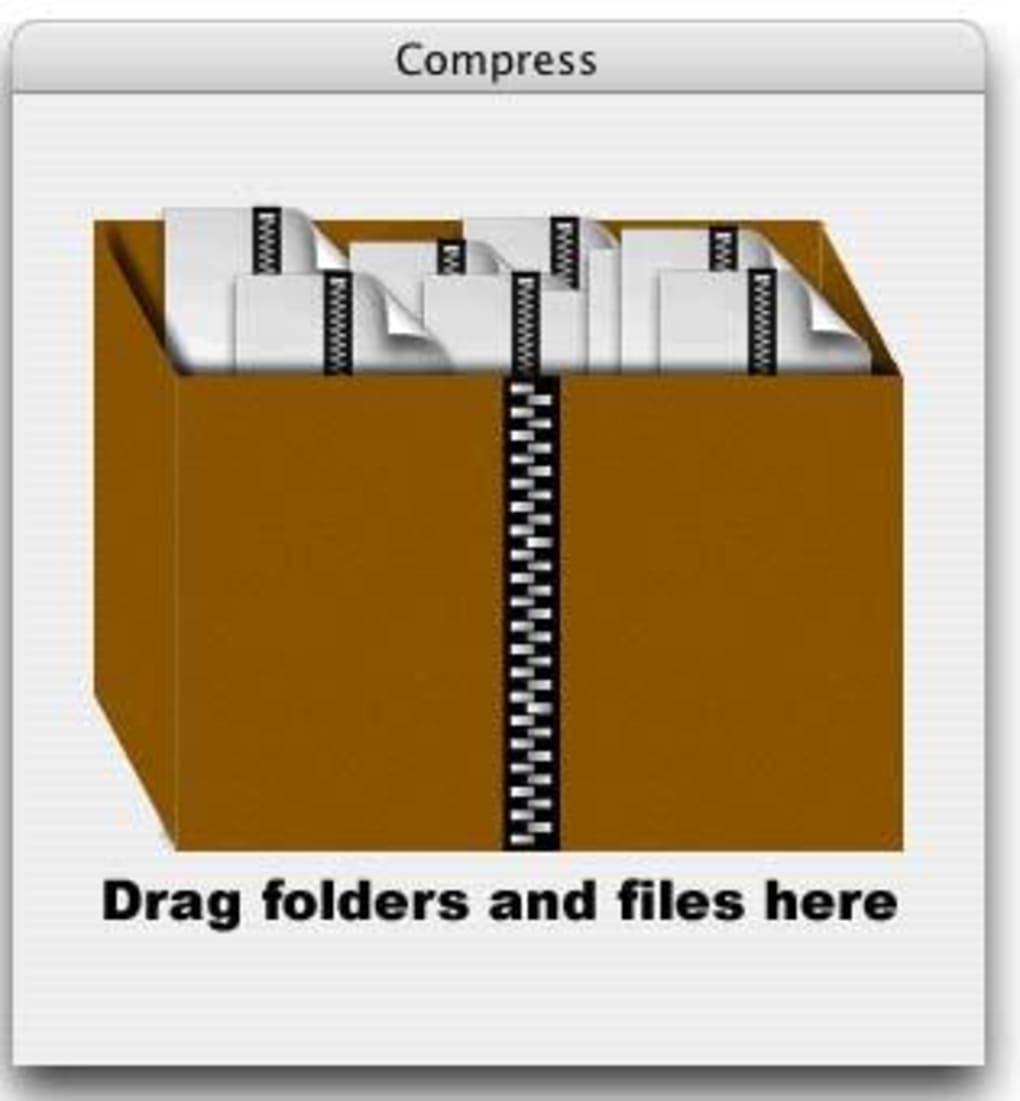
- Simple Drag‑and‑Drop Interface: Users can add files or folders by dragging them onto the main window, eliminating the need for complex menu navigation.
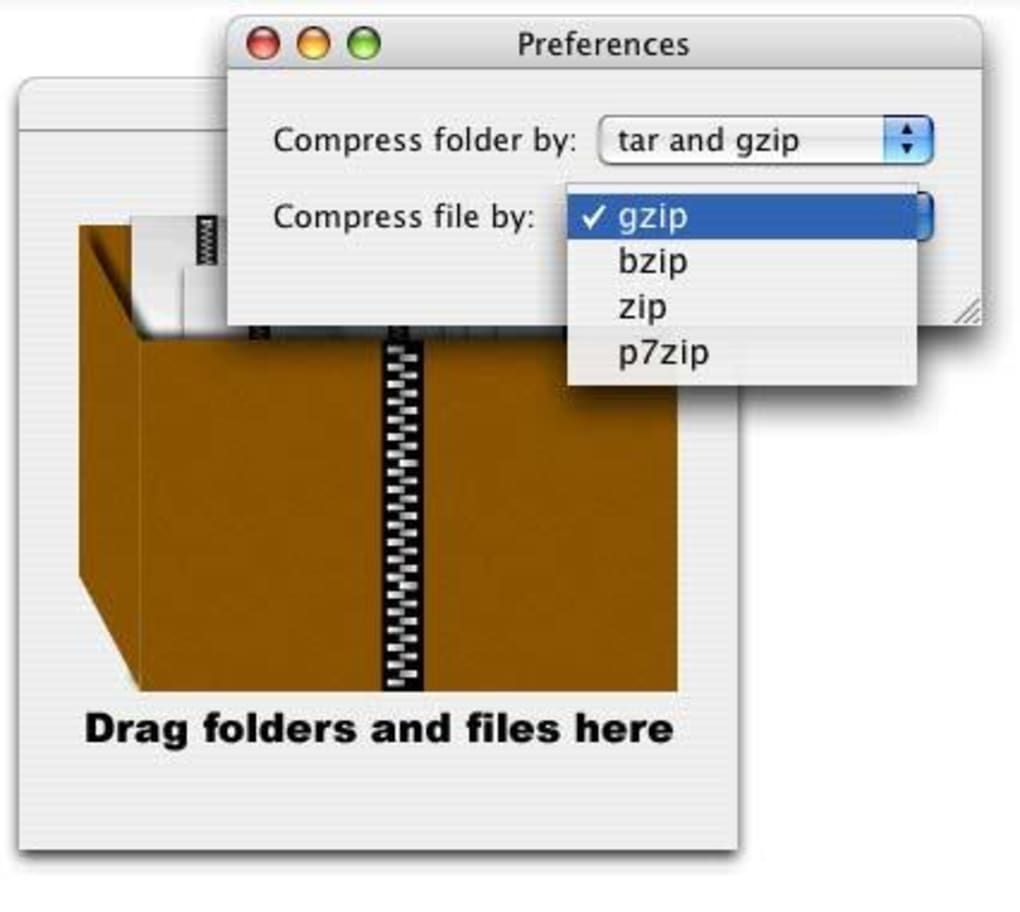
- Multiple Compression Methods: Supports standard ZIP format and offers options for different compression levels, letting you balance speed against archive size.
- Low Disk Footprint: The entire application occupies less than 2 MB of storage, making it ideal for older Macs with limited space.
- Native macOS Integration: Works seamlessly with Finder, allowing quick right‑click access via Services menu for instant compression.
- Secure Archive Creation: Provides optional password protection for ZIP files, ensuring sensitive data remains encrypted.
- Batch Processing: Handles multiple files and folders in a single operation, automatically naming the resulting archive based on your input.
- Compatibility with Legacy Systems: Fully functional on Mac OS X 10.3 (Panther) and later, guaranteeing that even older machines can still use the tool.
- No Ads or Trial Restrictions: Unlike many free utilities, Compress does not display advertisements nor limit functionality after a trial period.
- Automatic Archive Validation: After compression, the program runs a quick integrity check to confirm the archive is not corrupted.
- Regular Updates (Historical): Although the last official update was in 2006, the software has remained stable and compatible thanks to its solid core codebase.
Installation, Usage & Compatibility
Installing Compress is a breeze, reflecting the application’s overall philosophy of simplicity. Follow these steps to get the program up and running on your Mac:
- Download the Installer: Click the “Download Compress” button on the official website. The file will be a small .dmg package, typically under 2 MB.
- Mount the Disk Image: Double‑click the .dmg file to open it. You’ll see the Compress icon and a shortcut to your Applications folder.
- Copy to Applications: Drag the Compress icon into the Applications folder. This step installs the app system‑wide, allowing all user accounts to access it.
- Eject the Disk Image: Once the copy is complete, right‑click the mounted volume on your desktop and select “Eject”.
- Launch the App: Open the Applications folder, locate Compress, and double‑click to start. The first launch may trigger macOS Gatekeeper warnings; simply approve the app in System Preferences → Security & Privacy.
After installation, using Compress is intuitive:
- Compress Files: Drag one or multiple files/folders onto the main window, select your desired compression level, and click “Compress”. The resulting .zip archive appears in the same location as the source items.
- Decompress Archives: Double‑click any supported archive (ZIP) in Finder, or drag it onto the Compress window and choose “Extract”. The contents are extracted to a folder named after the archive.
- Password Protection: When creating an archive, enable the “Password” option and enter a secure phrase. The archive will be encrypted using standard ZIP encryption.
Compatibility: Compress is built for macOS and officially supports Mac OS X 10.3 (Panther) through the latest macOS releases. Its lightweight design ensures smooth performance even on older hardware, such as PowerPC‑based Macs that meet the minimum OS version. Because the output archives adhere to the standard ZIP format, they can be opened on Windows, Linux, Android, and iOS devices using native tools or third‑party apps like WinZip, 7‑Zip, or The Unarchiver. The program does not rely on any external libraries, so no additional runtime environments are required.
Overall, the installation process takes less than a minute, and everyday usage requires only a few clicks, making Compress an ideal solution for both novice users and seasoned power users who value speed and reliability over flashy features.
Pros, Cons & Frequently Asked Questions
Pros
- Extremely small download size and minimal disk usage.
- Completely free with no hidden ads or trial limitations.
- Simple drag‑and‑drop interface for quick compression.
- Supports password‑protected ZIP files for added security.
- Works on a wide range of macOS versions, including legacy systems.
- Generates standard ZIP archives compatible with all major platforms.
Cons
- Last official update was in 2006, so no recent UI enhancements.
- Lacks advanced features such as RAR, 7z, or multi‑volume archives.
- No built‑in cloud integration or automatic backup options.
- Limited language support (English only).
- No command‑line interface for automation enthusiasts.
Frequently Asked Questions
Is Compress still safe to use on modern macOS versions?
Yes. Although the last update was in 2006, Compress uses standard ZIP algorithms that are fully compatible with current macOS security standards. The app does not contain known vulnerabilities, and it runs without requiring additional permissions.
Can I compress files larger than 4 GB?
Compress supports the ZIP64 extension, which allows archives larger than 4 GB. However, very large files may take longer to process, and you should ensure you have sufficient free disk space for both the source and the temporary compression buffer.
Does Compress support batch extraction of multiple archives at once?
Yes. You can select multiple ZIP files in Finder, drag them onto the Compress window, and click “Extract All”. The app will create separate folders for each archive automatically.
Is there a way to integrate Compress with the macOS Services menu?
After installation, Compress registers itself with the Services menu. Right‑click any file or folder, navigate to Services → Compress, and the selected item will be zipped without opening the main application window.
What license does Compress use, and can it be used commercially?
Compress is released under a freeware license that permits personal and commercial use without any fees. The developer does not require attribution, though providing a link back to the official download page is appreciated.
Conclusion & Call to Action
Compress stands out in the crowded field of macOS archiving tools by embracing the philosophy of “less is more.” Its tiny footprint, straightforward interface, and reliable ZIP support make it an excellent choice for users who need a no‑frills solution for everyday compression tasks. While it lacks some of the advanced features found in paid competitors, its stability, free price tag, and compatibility across macOS versions more than compensate for the missing bells and whistles. If you’re looking for a secure, fast, and completely free utility to zip files, protect archives with passwords, or extract common ZIP bundles, Compress delivers exactly what you need without unnecessary clutter.
Overall Rating: 4 out of 5 stars – a solid, dependable compression tool for macOS.
Download Compress now and experience hassle‑free file compression on your Mac today.







